How to Delete a Bank Account in QuickBooks Online
Check the account, finish its activity, then delete it or make it inactive.
Understanding bank accounts in QuickBooks Online
QuickBooks Online lets users delete some accounts from the Chart of accounts. You need administrative access to make this change. If the delete option is missing, ask your company admin to review your access.
Before you delete a bank account from QuickBooks Online, decide whether you need its past records. Deletion can affect the account’s history and reports. Making the account inactive can hide it from common lists while retaining its history.
These steps cover QuickBooks Online. They do not explain how to delete a bank account in Xero or QuickBooks Desktop. Those products have their own menus and rules.
- Use inactivity when you want to keep transaction history.
- Delete only after checking linked activity and saved records.
- Confirm you selected the right account before making changes.
Delete or make the account inactive?
Deletion may be suitable for a duplicate account with no needed activity. An old, closed account often works better as inactive. This can keep past entries available for reports.
If you are unsure, ask your accountant before deleting anything. Keep a copy of records that your business may need for tax work or audits. A zero balance alone does not mean deletion is safe.
Why delete a bank account?
A business might add the same bank account twice, close an old account, or stop using one. Removing an unused account can make the account list easier to manage. It can also lower the chance that staff choose the wrong account.
Still, an account with no current balance may hold past payments or deposits. Those entries may support reports from earlier periods. Review the register and reports before you delete a bank account in QuickBooks Online.
Check for activity that may still point to the account. Look at pending payments, deposits, bank feed items, bank rules, and recurring entries. Resolve or update these links before you remove the account.
- Do not delete an account that still receives payments.
- Review open transactions and bank feed items.
- Save useful reports and account records first.

Steps to delete or make an account inactive
Finish entering and matching the account’s activity before you act. Reconcile the account through its latest bank statement. Save key records, such as the account register and reconciliation report.
If a bank feed is linked, review items that still need approval. Disconnect the feed if you no longer need it. Update bank rules and recurring entries that use this account.
- Open the account list. Select Settings, then Chart of accounts.
- Find the bank account. Check its name, type, and last digits.
- Open the action menu. Select the menu beside the correct account.
- Choose the action. Select Delete or Make inactive, based on your needs and the choices shown.
- Read the warning. Check what may happen to linked activity and reports.
- Confirm and review. Check the account list and a past report after the change.
This is the usual way to delete a bank account in QuickBooks Online. Menu names can change, so follow the labels in your account. If Delete is not shown, the account may have linked activity or your role may lack access.

Common issues and troubleshooting
QuickBooks may block deletion when an account has a balance or linked entries. Start with the register and look for open payments, deposits, or mistaken entries. Do not force the balance to zero just to clear a warning.
A live bank feed can also affect the change. Review pending items, then disconnect the feed if it is no longer needed. Check bank rules and recurring entries too, since they may still use the account.
If the action is missing, check your access and confirm you selected the right account. Save the exact warning if the issue remains. Your company admin or QuickBooks support can help find the cause.
| Issue | What to check |
|---|---|
| Account has a balance | Review the register, open items, and latest reconciliation. |
| Bank feed is linked | Review pending items, then disconnect the feed if needed. |
| Delete action is missing | Check your access and confirm the account selection. |
| Future entries may use it | Update linked rules and recurring entries first. |
How bank account reconciliation affects deletion
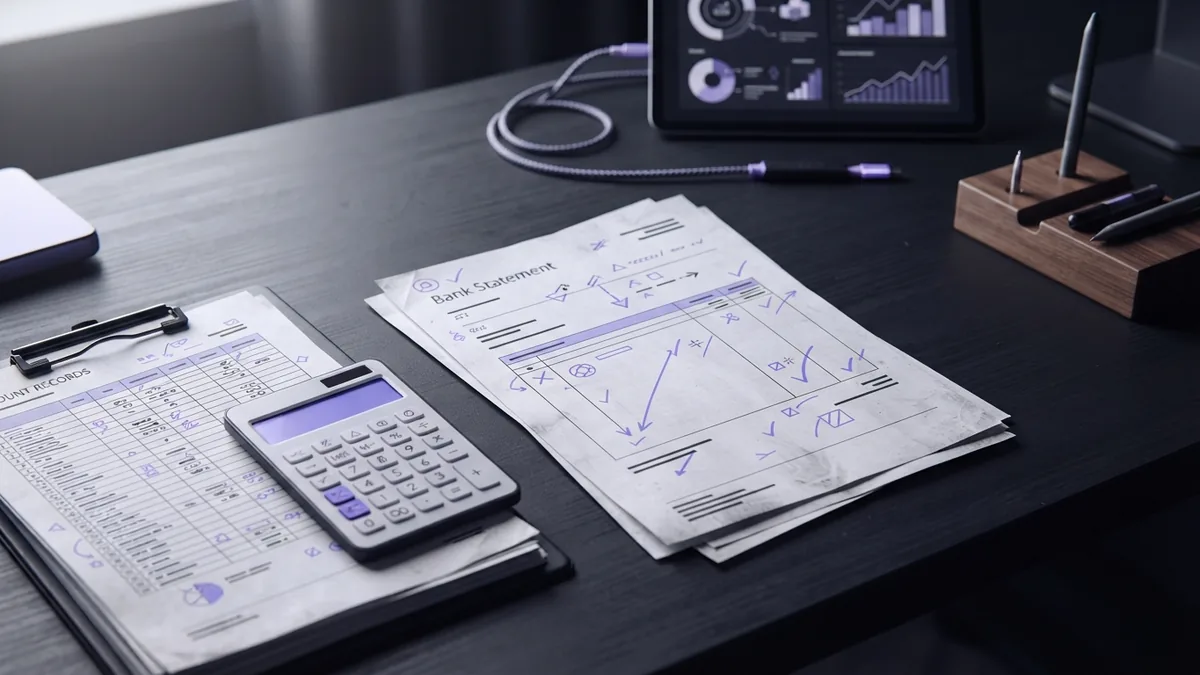
Reconciliation checks whether your QuickBooks entries match a bank statement. It does not delete the statement or remove the account’s past activity. Finish any open reconciliation before changing the account.
Deleting an account can affect how you view past reports. Save reconciliation reports and key account details before you proceed. If an old reconciliation looks wrong, review the entries that changed since it was completed.
Do not remove a reconciliation just to make deletion easier. First check whether a change came from an edited, deleted, or added transaction. Your accountant can help you correct the books without losing useful history.
- Complete the latest bank reconciliation.
- Save reports before making account changes.
- Review changed entries before altering past records.
Preventing future account errors
Check the account list before adding a new bank account. Search for a matching name and last digits to catch duplicates. Use clear names so staff can tell active accounts apart.
When an account closes, update any payment, deposit, or recurring entry that still points to it. Review bank feed links as part of the closeout. Keep the account inactive if staff need its past activity for reports.
For a search like “how do I delete a bank account in QuickBooks Online,” the key choice is whether you need the history. Use deletion only when the account and its linked activity have been reviewed. Otherwise, making it inactive is often the safer option.
The same steps do not apply to searches such as “how to delete a bank account in Xero” or “how to delete a bank account in QuickBooks Desktop.” Use the help for the product you work in. Avoid following instructions for a different version.